Bill rates and billing
Every billable hour is worth an amount, and that amount comes from a rate the app worked out at the moment the hour was logged. Two things follow from that, and between them they explain almost every “why is this number wrong?” question: where the rate comes from, and when it’s decided.
Where the rate comes from
Section titled “Where the rate comes from”There isn’t one rate. There’s a chain, and the app takes the first one it finds, most specific first:
| Where it’s set | |
|---|---|
| 1 | This person, on this phase |
| 2 | The phase’s default rate |
| 3 | This person, on this project |
| 4 | The project’s default rate |
| 5 | This person, for this company |
| 6 | The person’s own default rate |
Read it as: “What do we charge for Bo on this phase? Nothing set — what does this phase charge? Nothing — what do we charge for Bo on this project?” and so on down. The first answer wins and the rest are never consulted.
Most organizations use two of these six. A default rate per person, and a project override when a customer negotiated something different. The other four exist for when that isn’t enough — and the reason there are six is that real rate cards are genuinely this fiddly, not because anyone enjoys it.
When the rate is decided
Section titled “When the rate is decided”At the moment the entry is created. The rate is copied onto the entry and stays there.
This is the part that surprises people, so it’s worth being blunt about the consequence:
When a rate was genuinely wrong rather than genuinely changed, there’s a recalculation tool that re-applies the current rate to already-logged entries. You’ll find it on the project, in Time Tracking → Settings → Projects → edit — it works a project at a time, for a chosen set of people and a chosen date range, rather than rewriting everything everywhere.
It’s deliberately narrow, and it will tell you what it skipped:
- It only touches unbilled entries. Anything already on an invoice is left alone.
- It only touches entries logged in this app. Time imported from elsewhere keeps the rate it was imported with, because that system is the source of truth for it.
- It previews before it applies, showing you the total before, the total after, and the difference.
Use it for a correction. Don’t use it to apply a price rise retroactively.
The billing dashboard
Section titled “The billing dashboard”Billing → Overview is the money view of the time everyone has logged.
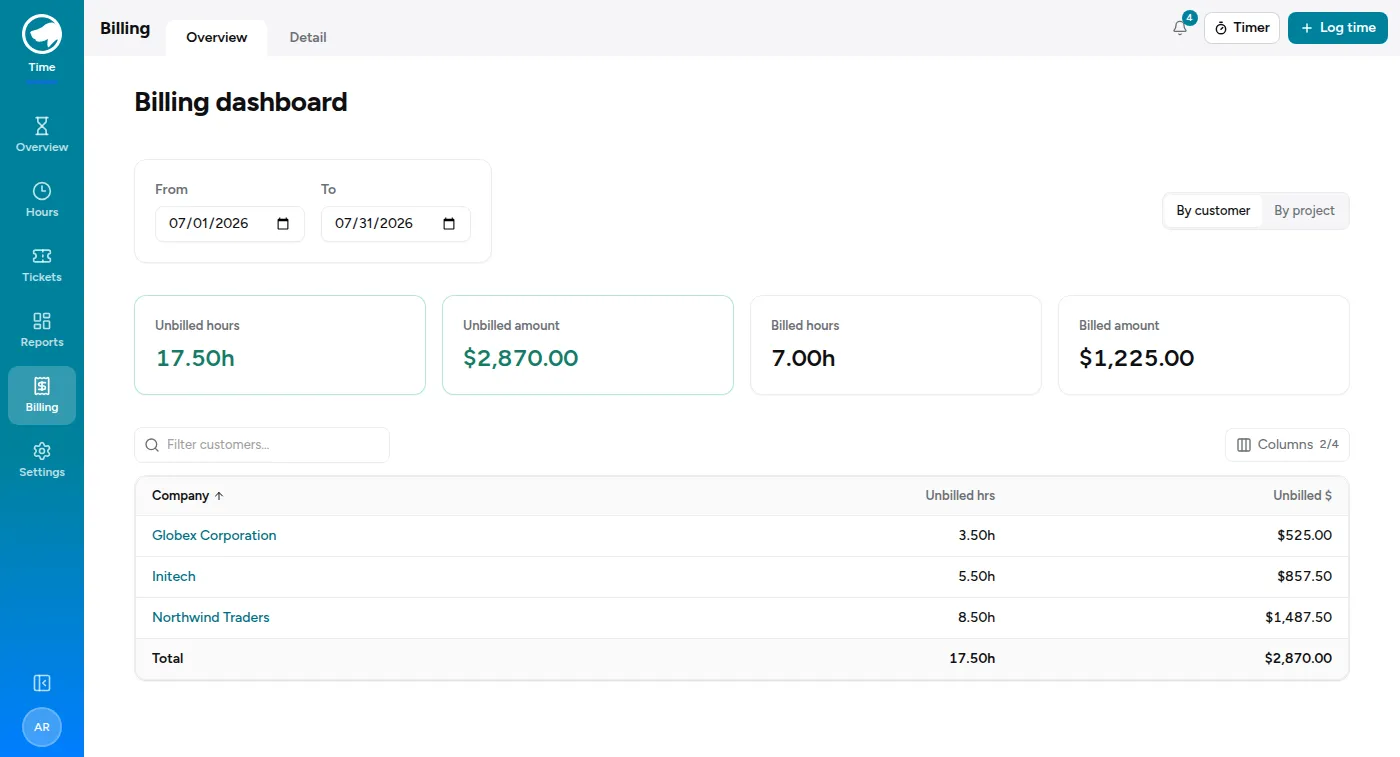
Four numbers across the top — unbilled hours, unbilled amount, billed hours, billed amount — for whatever date range you’ve picked, then a breakdown you can flip between by customer and by project.
Unbilled is the one you’ll actually look at. It’s the answer to “what have we done that we haven’t charged for yet”, which is the question that matters at the end of a month.
Every column heading sorts, including Company and Partner. Partner is the contracting company on the project — who the work is invoiced through, or Direct when it’s billed to the company itself. Sort on it to pull all of one reseller’s work together, however many end companies it’s spread across. The filter box matches partner names too.
The detail view
Section titled “The detail view”Billing → Detail is where you go per customer, and it’s the screen you’d work from when preparing an invoice.
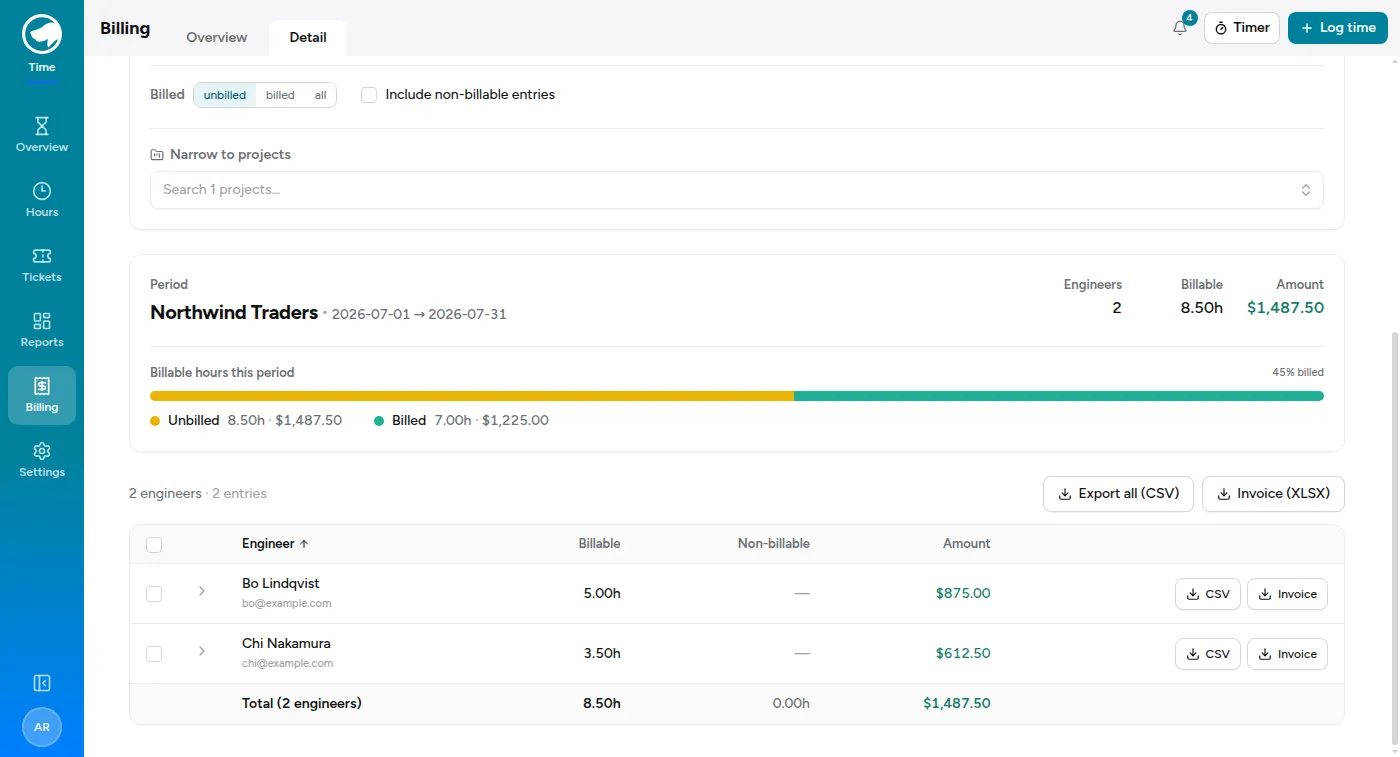
Pick a customer — or jump straight to a project — from the search box. Press
/ anywhere on the page to get back to it. Then you get:
- The period, with Previous month and This month as one-click presets.
- A billed / unbilled / all filter. It opens on unbilled, because “what still needs invoicing” is the question you came with — so the engineer table below is showing you outstanding work, not everything. Switch to all when a total doesn’t look like you expected.
- Include non-billable entries, off by default. Turn it on when you want to show a customer everything you did, including the parts you didn’t charge for.
- Narrow to projects, for a customer with several.
- A per-engineer breakdown — hours, non-billable hours, amount — and a progress bar showing how much of the period is already billed.
Export CSV gives you the raw entries; Invoice (XLSX) gives you a spreadsheet shaped like an invoice. Both are available for the whole customer or for one engineer at a time.
What “billed” actually means
Section titled “What “billed” actually means”An entry is billed when it has been included in an invoice raised from this app. Until then it’s unbilled, however long ago it was logged and however certain you are that you charged for it.
Once an entry is billed it’s also protected: the recalculation tool skips it, and it keeps the invoice number it went out on.
Who can see all this
Section titled “Who can see all this”Billing is for admins — either a platform admin, or someone given the admin role on the Time Tracking module. Everyone else sees their own hours and their own entries, but not other people’s amounts and not these screens at all. If a colleague says they can’t find Billing, that’s why, and module access is where it’s granted.