SLAs and business hours
An SLA is a promise about time: how fast a ticket gets answered, and how fast it gets solved. Attach one to a ticket and the ticket carries deadlines.
What an SLA sets
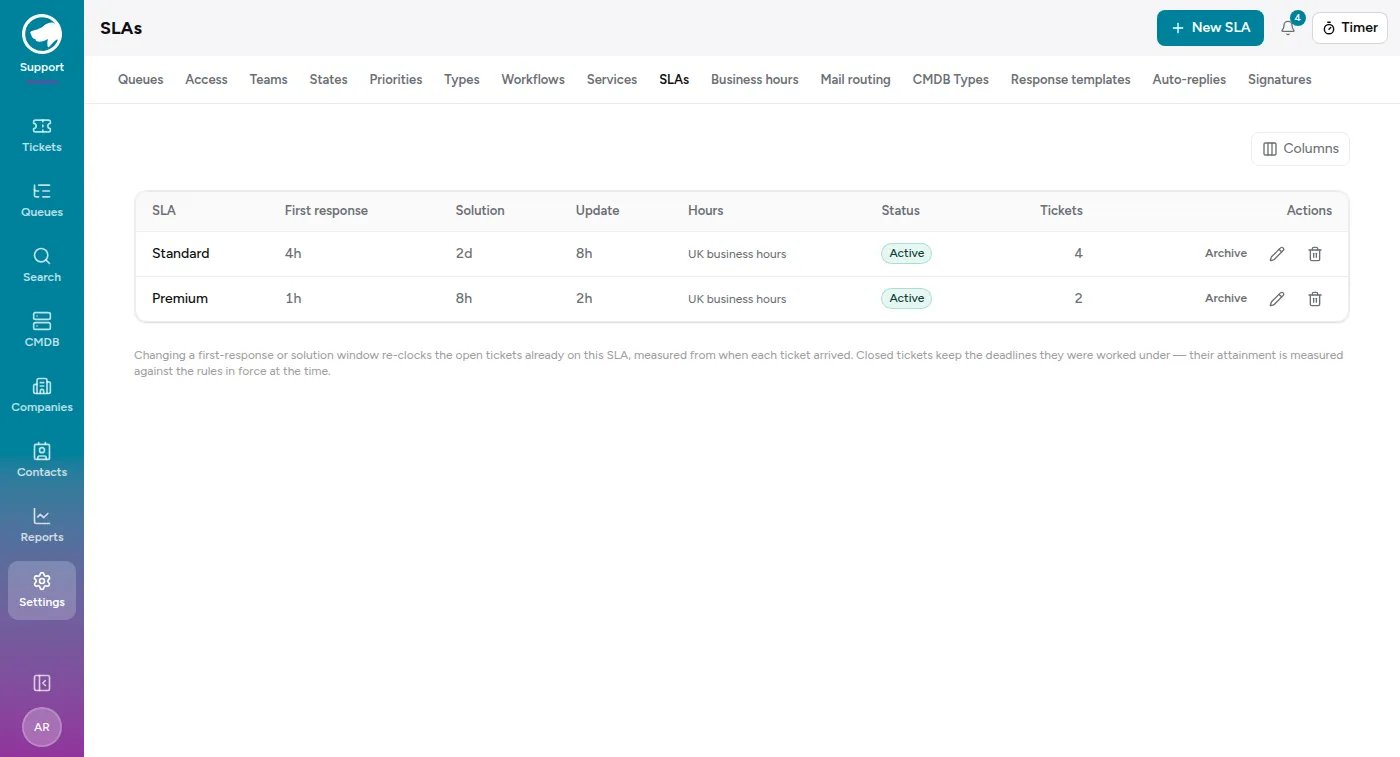
Section titled “What an SLA sets”Settings → SLAs. Each one has three windows:
- First response — from the ticket arriving to the first reply that goes to the customer.
- Update — the longest a customer waits for a reply. It counts from their oldest unanswered message, so it’s the promise behind the Needs reply tab on the ticket list.
- Solution — from arrival to closed.
The update clock is the one that behaves differently from the other two. First response and solution both pause while a ticket sits in a pending state — a deliberate wait shouldn’t count against you. The update clock doesn’t pause, because it isn’t measuring your promise; it’s measuring how long the customer has been sitting there, and moving a ticket to pending doesn’t change that.
The list shows them in human units (4h, 2d, 8h), the business-hours calendar each one counts in, and how many tickets are currently on it.
Business hours
Section titled “Business hours”Settings → Business hours defines a calendar: a timezone, and the open windows for each weekday. An SLA that points at a calendar counts only the minutes inside those windows, so a four-hour response target on a ticket that arrives at 5pm on Friday is due mid-morning on Monday, not overnight.
An SLA with no calendar counts around the clock instead.
On the ticket
Section titled “On the ticket”The SLA panel shows each clock with its state: met, due in some amount of time, or overdue by some amount. Reply only appears while a customer is actually waiting — once someone answers, it goes away until the customer writes again. The list view’s SLA column shows whichever clock is live on that ticket — the reply one while a customer is waiting, the solution one otherwise. Add the Waiting column from Columns to sort by how long people have been waiting.
When the reply happened somewhere else
Section titled “When the reply happened somewhere else”The Needs reply flag works off the conversation in the ticket: it goes on when the customer writes and comes off when you send them something back. That’s usually right, and occasionally it isn’t — the customer mailed to approve a maintenance window, you scheduled the maintenance, and there’s nothing left to say in the ticket. Left alone it would sit on the Needs reply tab forever and keep breaching its update clock.
The Needs reply row in the ticket’s property panel shows where things currently stand, and there are two ways to settle it.
When the ticket itself explains the situation — the customer’s last message was “thanks, all set”, or you can see the approval you were waiting for — press Clear on that row. The ticket leaves the tab and its reply clock stops.
It doesn’t add a message to the thread. It’s recorded the way every other change to a ticket is: a one-line entry (“Jose Bogarin needs reply: waiting → no”) in History, and in the conversation itself once you untick Hide system events.
When it needs a word of explanation, put the two together instead: switch the composer to Add internal note, write what actually happened, and tick Clear Needs reply before saving. Same effect on the flag, but now the note is the why and the tick is what makes the board agree with it.
The composer’s checkbox also goes the other way. If the flag is already clear it reads Mark Needs reply and puts it back — useful when a customer rang instead of writing, and as the undo if you cleared one by mistake (it restores the wait that was really running rather than starting a fresh one).
Either way, nothing is sent to the customer and the ticket’s state doesn’t move — you’re only saying whether you owe them an answer.
Replying to the customer needs none of this: sending them anything clears the flag on its own. It’s only internal notes that leave it running, which is the whole reason the checkbox lives there.
To settle a batch of them, select the tickets on the list and choose Bulk actions → Clear needs reply.
Changing an SLA changes live tickets
Section titled “Changing an SLA changes live tickets”This is the part worth knowing before you edit one:
Changing a first-response or solution window re-clocks the open tickets already on this SLA, measured from when each ticket arrived. Closed tickets keep the deadlines they were worked under — their attainment is measured against the rules in force at the time.
So tightening a target doesn’t just apply to new work; it can put open tickets into breach immediately. And it doesn’t rewrite history — last quarter’s numbers stay measured against last quarter’s promises.
Holidays
Section titled “Holidays”A business-hours calendar can carry holidays, and those come out of the countable minutes the same way a closed evening does.