Finding your way around
The app is divided into modules, and the coloured rail down the left is how you move between them. Which ones you see depends on what your organisation has turned on and what you’ve been given access to — most people see fewer than exist.
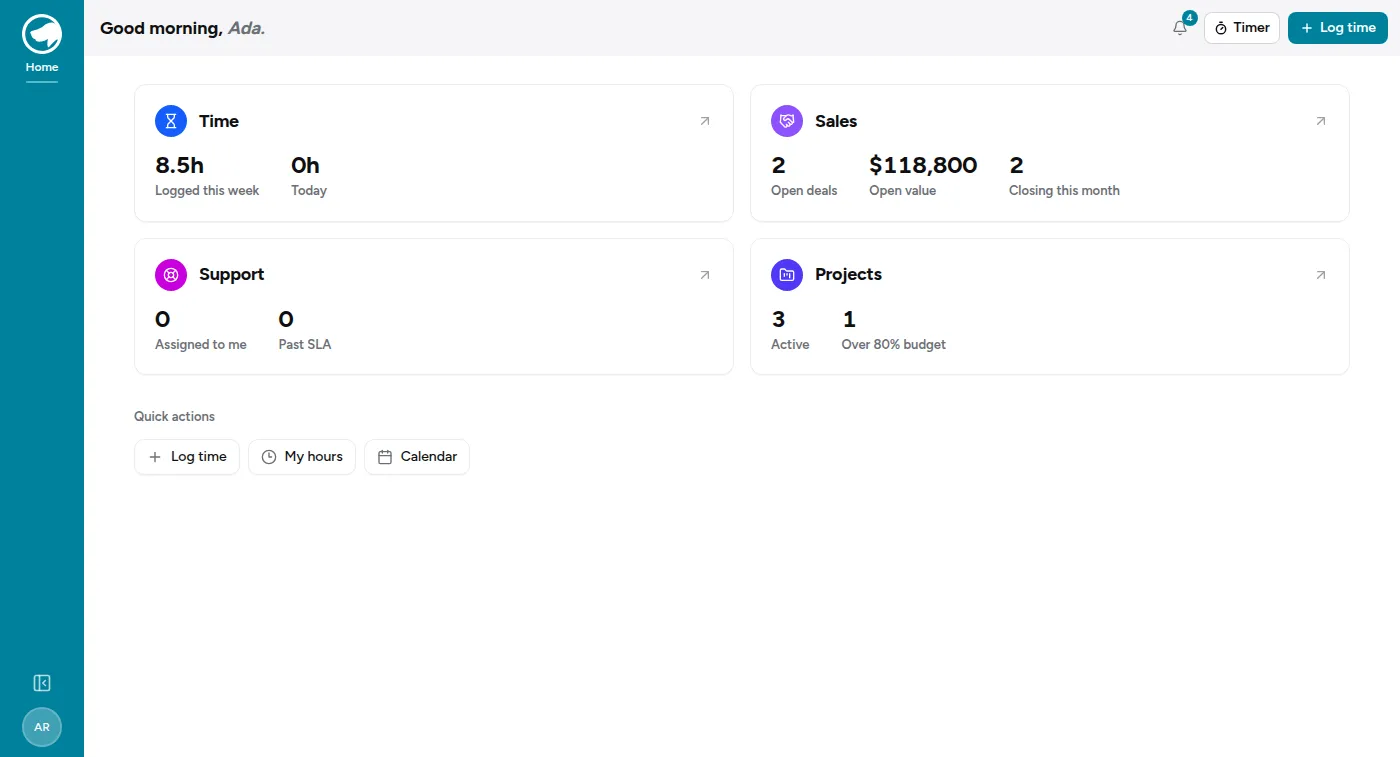
Signing in lands you here — Home, which belongs to no module and shows one card per module you can reach. It’s the fastest way to see whether anything needs you before you decide where to go.
The modules
Section titled “The modules”- Time Tracking — logging hours, the calendar, budgets, billing and the time reports.
- Projects — a workspace per project: budget, team, deals and tickets in one place.
- Service Desk — tickets, queues, the CMDB, and the customers who raise them. Optional.
- Sales — pipeline, quotes, subscriptions. Optional.
- Admin — users, access, integrations. Platform admins only.
The top of the rail is the module you’re in. Click it to switch.
Inside a module
Section titled “Inside a module”Every module is laid out the same way, which is worth knowing because it means you can guess:
- The working surfaces are at the top of the rail — the things you do all day.
- Reports is analysis of what’s there.
- Settings is configuration — the vocabularies, the rules, the catalogue.
“Settings” means things you configure, not things only admins see. Some admin-only pages deliberately live elsewhere.
The org name at the very top of the rail is Home — the cross-module landing page. It belongs to no module, and it’s a short summary with the numbers most people want first: hours this week, hours today, active projects, anything over budget, and shortcuts to log time.
Where you land
Section titled “Where you land”After signing in you go to your start page, which you can set per organisation: Home, or a module you’d rather begin in. If you followed a link to a specific page while signed out, you go there instead — the deep link wins, and only once.
More than one organisation
Section titled “More than one organisation”If you belong to more than one organisation, the switcher in the rail moves between them, and you land back in whichever one you used last. There’s no picker page to get through first.
Everything is scoped to the organisation you’re in. Data never crosses between them.
The bits that follow you around
Section titled “The bits that follow you around”Along the top, on every page:
- Timer — start, stop and see a running timer wherever you are. See Using the timer.
- The bell — your notification inbox.
- Log time — the quickest way to record an hour without leaving what you’re doing.