Logging your first hour
The whole job is: pick a project, say which day, say how long. Everything else is optional.
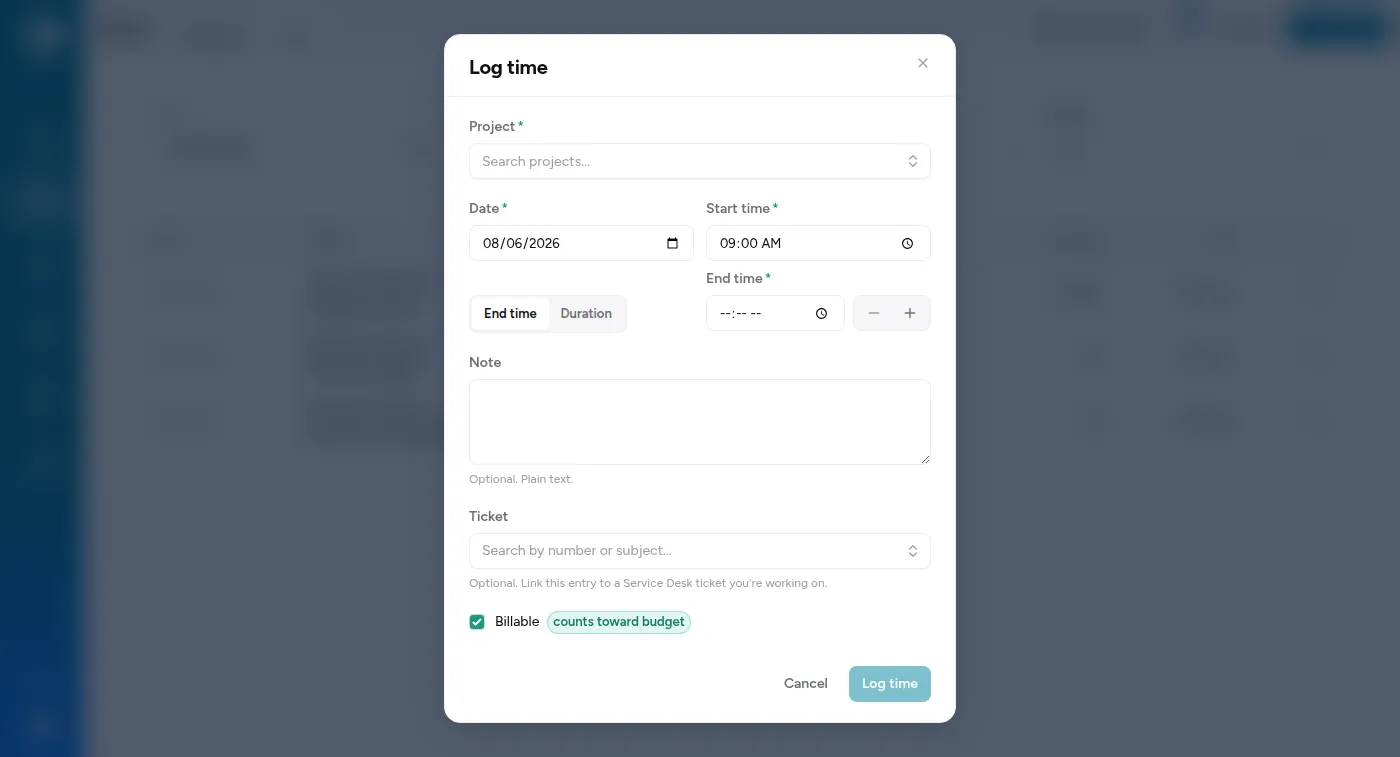
-
Sign in.
Use your work account — Google or Microsoft, whichever your organisation uses. There’s no separate password: if you can open your work email, you can open this.
-
Choose Log time.
You’ll get a form with a project picker, a date, and a duration.
-
Pick your project.
Only projects you’re assigned to appear here. If yours is missing, you’re not on the team yet — ask an admin rather than logging it against something close enough.
-
Check the date.
It defaults to today. Logging yesterday’s work? Change it. Backdating is normal and nobody minds.
-
Say how long.
Two ways, and you pick which: give an end time, or give a duration. If you give a duration, you can enter it in minutes (
90) or in hours (1:30) — switch units with the toggle next to the field.Nothing wrong with either. Use whichever matches how you remember the work.
-
Add a note if you’re asked for one.
Some projects require it, and the app will tell you. One sentence about what you did is plenty.
-
Save.
That’s the entry. It’s now on your calendar and counted against the project’s budget.
Two things that surprise people
Section titled “Two things that surprise people”Your duration might round up when you save. Some clients are billed in fixed blocks — fifteen or thirty minutes — so on those projects 20 minutes becomes 30. That’s the client’s contract, not a bug. It only applies to billable entries that have a start time, and only on projects set up that way.
Billable is already on. You don’t need to do anything for normal client work. Turn it off only when the work genuinely isn’t chargeable.
- Logging time — the rest of the form, and faster ways in
- Using the timer — for when you’d rather not think about it