Working a ticket
Open a ticket and you get three things: the controls along the top, the conversation in the middle, and everything the ticket knows about itself down the right.
The controls
Section titled “The controls”State, Priority, Queue, Assigned to and Type sit across the top and change immediately — there’s no separate save.
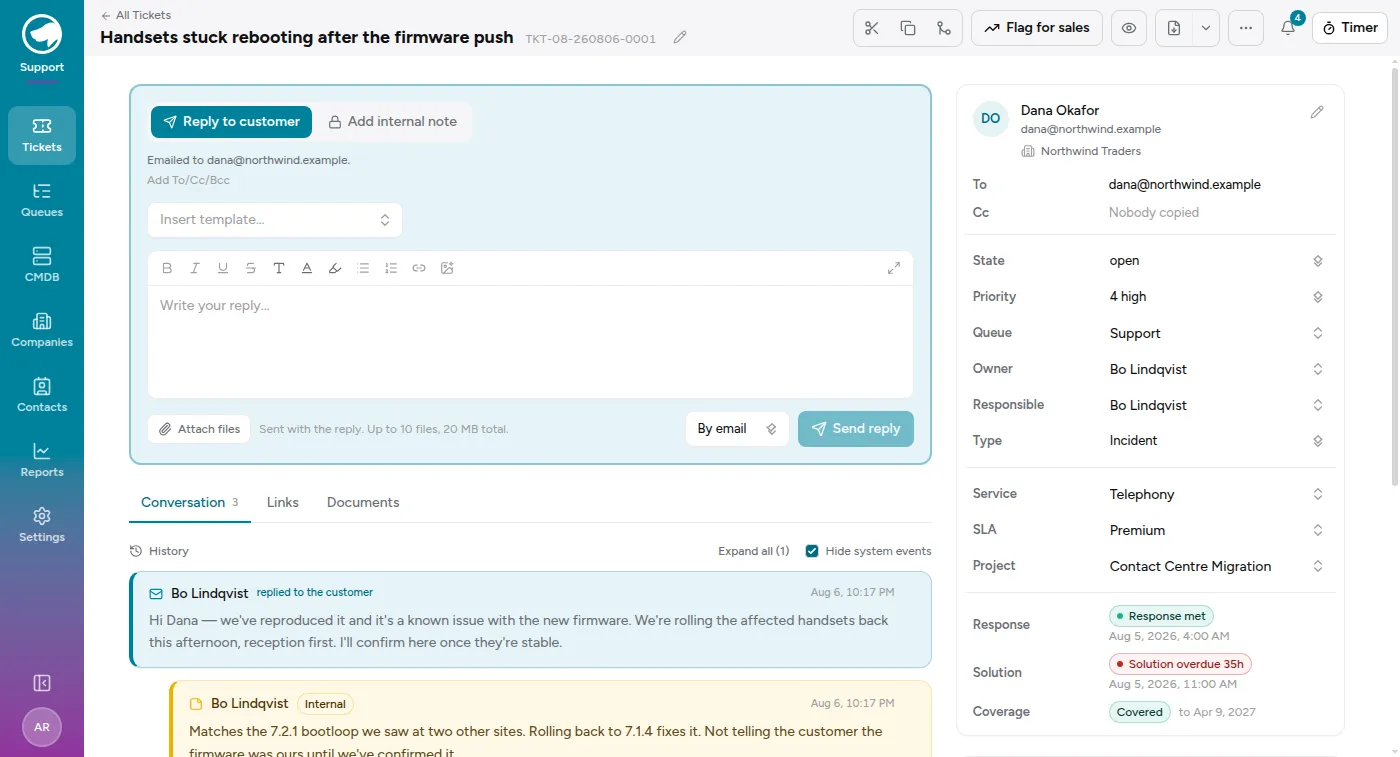
The title changes in place too — the pencil beside it turns the heading into a box. Enter saves it, Escape leaves it alone.
Assigned to is the one name on the ticket: whoever is carrying it. It is what My work and Unassigned key on, what the reports group by, and who gets the notification when a customer replies. Leave it empty and the ticket shows up as unassigned, which is a queue’s way of asking someone to pick it up.
Replying, and not replying
Section titled “Replying, and not replying”Under the conversation is the composer, and the first thing it asks is where does this message go?
- Reply to customer — an email. The composer tells you the address it’s going to, so you can’t send it by accident and find out later.
- Add internal note — stays inside. Your colleagues see it; the requester never does, including in the portal.
You can add Cc/Bcc, and attach files — up to 10 files and 20 MB in total, sent along with the reply.
Cc starts where the customer left it. If their last email copied someone — their manager, a colleague, their account rep — those addresses are already in the Cc field when you open the ticket, so the people who saw the question also see your answer. Remove any of them before you send and the change applies to that message only; the next reply starts from the customer’s Cc again. If they drop someone from the Cc of their own latest email, that person drops out of yours too.
Two kinds of address never appear there: your own queue addresses, and the requester’s. Customers routinely put the support address — or themselves — in Cc as well as To. Copying ourselves just mails our own inbox, and copying the requester sends them the same reply twice, so both are filtered out: on the suggestion, and on anything you type in yourself.
The history
Section titled “The history”Everything is in the timeline, newest first: customer emails, your replies, internal notes, and the system events (state changes, reassignment, SLA milestones). Hide system events strips it back to just the conversation when you’re trying to read what actually happened. Expand all opens the collapsed entries.
Moving it along
Section titled “Moving it along”The states that come as standard:
| State | What it means |
|---|---|
| new | Nobody has picked it up |
| open | Being worked |
| pending reminder | Waiting, and it’ll nudge you |
| pending customer | Waiting on them, and it closes itself if they go quiet |
| resolved | Done, pending confirmation |
| closed | Finished |
| merged | Folded into another ticket |
pending customer asks for a date, and that date is the point of the state — it’s what wakes the ticket up again. A pending ticket with no date is one nobody will ever look at.
If your organisation has defined a workflow, the state dropdown may only offer the next steps that workflow allows.
The right-hand panels
Section titled “The right-hand panels”- Requester — who asked, their email, their company.
- Time logged — total and billable hours booked against this ticket, and a Start timer button that starts a timer already pointed at the right project. See Time on tickets.
- SLA — the response and solution deadlines, and whether you’ve met them. See SLAs and business hours.
- Coverage — whether this customer has a live subscription or contract covering the work. Advisory: it never blocks a reply.
- Config items — the kit involved. See The CMDB.
- Hierarchy and Related tickets — parents, children, and links to tickets that aren’t in the same tree.
- Documents — links to where the information lives.
Splitting, merging and escalating
Section titled “Splitting, merging and escalating”The row of buttons at the top right has the bigger moves. Most of them are icons — hover over one to see what it does.
- Split into a new ticket — pulls part of a conversation out into its own ticket, for when one email turns out to be three problems.
- Duplicate into a new ticket — the same message picker, but the originals stay where they are.
- Merge into another ticket — folds this ticket into another. The survivor keeps everything; this one goes to the merged state and points at it.
- Flag for sales — creates an opportunity from this ticket, for when a support request turns out to be a sale. It takes the ticket’s title and company, drops it into the first open pipeline stage, and links the two so the deal remembers where it came from. Flagging the same ticket twice just points you at the opportunity you already made. It needs the Sales module switched on, and a company on the ticket.
- PDF summary — the whole ticket as a document.